Hi Friends,
I don't normally vent or complain about things that have nothing to do about technology, but here's one that REALLY upsets me and I just don't get it. My hope is if I speak up and make people aware, MAYBE, just maybe they'll be more courteous. Maybe?
In California, if you're in the right hand lane and you come to a red light, you must first STOP, make sure there are no pedestrians, bicycles, cars, etc. and when it's SAFE you can turn if there's not a red right arrow or something saying you can't turn. Take a look:
http://apps.dmv.ca.gov/pubs/hdbk/turns.htm
Simple concept right? Then why do people get so impatient and angry if you don't immediately go? It seems if you spend more then 1/2 a second people start to honk at you.
For example, there's a turn by where I live that I take every day. It's a very busy street and if I leave past a certain time it's certain that the traffic will be really bad and making a right on the red without hitting something is very unlikely. It NEVER ceases to amaze me how impatient people are! I'm sitting at the light and 5 or 10 seconds goes by along with a very steady stream of cars and I know what's coming... I start to get nervous.... And it happens!
HONK!!
HONK!!
I jump in my seat. What the heck? It's not safe, I'm not comfortable jumping out into on coming traffic, but I'm being yelled at to move! The light turns green and I begin to make the turn and the guy who honked at me proceeds to honk at me three more times!
Have you ever seen the Disney short, Motor Mania? It was made in 1950. And it's true today as it was 65 years ago. The polite and friendly Mr. Walker transforms into the impatient, angry and rude Mr. Wheeler as soon as he gets behind the wheel of his car.
Mr. Walker - Just before the transformation.
Mr. Wheeler - The transformation has occurred!
Did the guy who honked at me really accomplish anything accept raise my blood pressure and his? Did he miss an important life altering meeting because I didn't jump out into traffic 20 seconds earlier?
Was someone's life in jeopardy because I didn't run through a red light?
Why are we always in such a hurry? To go where? Work? School? Will 20 seconds really make a difference? Just because you're in your car doesn't make you anonymous or less liable for your actions. Would you walk up to someone and yell at them, "Get out of my way!" Do people realize there's a person in the car in the car in front of them that they're honking at? My intention wasn't to anger this person, but to get to work alive.
Well that's enough venting. Maybe next time if there's a car in front of you and they're pissing you off for some reason, take a deep breath, is it really worth getting angry and ruining your and their day?
Anger and impatience leads to poor judgment and doing things we normally wouldn't do. Take a look what happened to Mr. Wheeler. Is it really worth it?
Thursday, January 22, 2015
Demystifying VDI Webinar TODAY!
Hi Friends,
Ugh, why didn't I think of this sooner!! I'm giving a webinar today at 11:00 Pacific time on VDI.
http://www.nimblestorage.com/news-events/webinars.php
If you'd like to tune in, head over to the Nimble site and register! You'll have a chance to win an Amazon gift card too!
Ugh, why didn't I think of this sooner!! I'm giving a webinar today at 11:00 Pacific time on VDI.
http://www.nimblestorage.com/news-events/webinars.php
If you'd like to tune in, head over to the Nimble site and register! You'll have a chance to win an Amazon gift card too!
VMware Certifies Nimble Storage for Horizon Fast Track 2.0 Proven Storage
Hi Friends,
I'm on the Nimble Storage Website! Recently we ran through the VMware Horizon Fast Track 2.0 Proven Storage certification. Have a look how Nimble Storage can help you with your VDI needs!
http://www.nimblestorage.com/blog/technology/vmware-certifies-nimble-storage-for-horizon-fast-track-2-0-proven-storage/
This calls for a Flash Jump!
I'm on the Nimble Storage Website! Recently we ran through the VMware Horizon Fast Track 2.0 Proven Storage certification. Have a look how Nimble Storage can help you with your VDI needs!
http://www.nimblestorage.com/blog/technology/vmware-certifies-nimble-storage-for-horizon-fast-track-2-0-proven-storage/
This calls for a Flash Jump!
Monday, January 19, 2015
**Update** - Restore Single Files - Nimble Snapshots is There Anything They Can't Do? Part II - VMware vCenter Plugin
Hi Friends,
Got some great feedback on the single file restore blog! One of my SE's mentioned how about doing this with the Nimble VMware vCenter Plug-in? And another person mentioned running into the All Paths Down issue if the datastore is pulled without properly un-mounting it. Why I didn't show the plug-in is beyond me, I think my brain has officially turned into tapioca.
Anywho, the cool thing about the Nimble VMware vCenter Plug-in is it takes care of all of the vCenter stuff! All the mounting and un-mounting, so you don't run into problems. Let me demonstrate.
Here we've got the "share" datastore we need to clone and mount up. Click on the datastore to get more information.
There's our snapshot with our really important file. We select it and click on the clone icon.
I gave it a name called "restore" and click on the Clone button to kick off the clone.
After the clone is finished, the plug-in not only clones the datastore, but mounts it up! How cool is that?
Next we mount up the disk on a host like we did in the previous blog.
The disk is mounted up and there is our really important file!

Back in the Nimble Plug-in we can see the "restore" datastore is now listed as a volume. Note the size! Gotta love zero copy clones! :-)
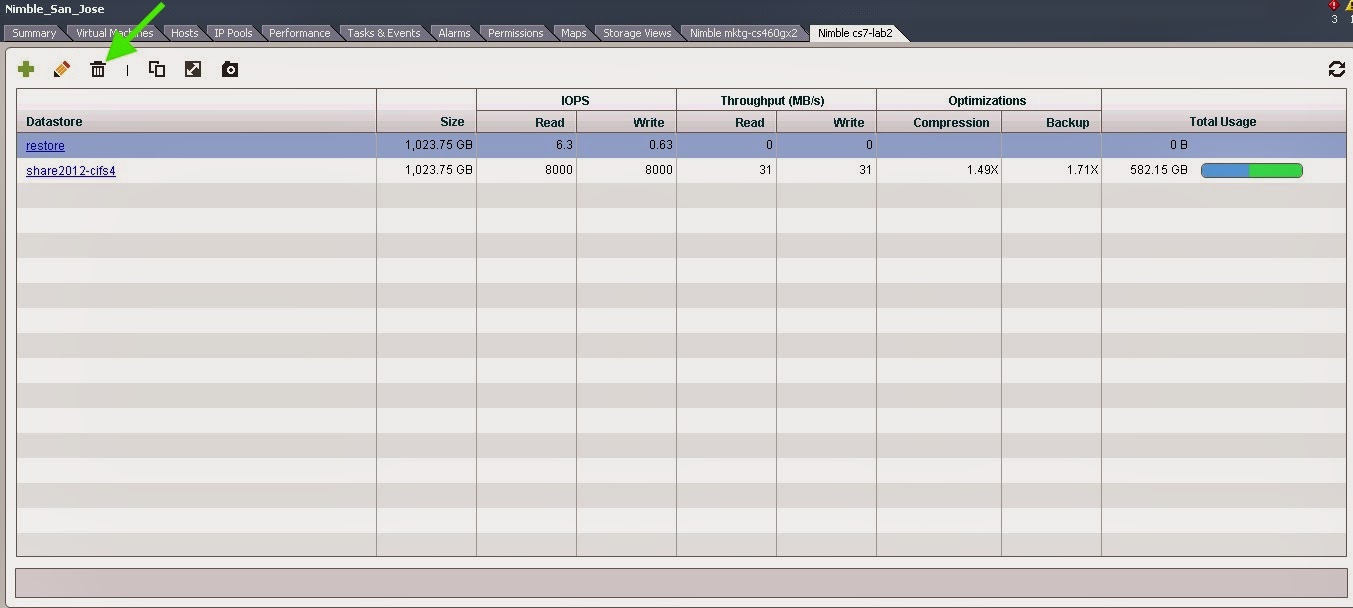
Now let's delete the clone to clean things up. We do this in the Nimble Plug-in too by clicking on the trash can.
We get this warning, just to be sure we really want the datastore deleted.
But Brain, you didn't un-mount the datastore from the virtual machine in vCenter, isn't that going to cause all kinds of problems?
Ahhhhh! I'm glad you asked that! Hey, we've gotcha covered! Once I remove the datastore from the Windows host I can successfully delete the datastore. Here's the error I got before I un-mounted the datastore from the virtual machine.
And to avoid All Paths Down. We properly remove the datastore from VMware vCenter.
Until Next Time!
-Brain
Got some great feedback on the single file restore blog! One of my SE's mentioned how about doing this with the Nimble VMware vCenter Plug-in? And another person mentioned running into the All Paths Down issue if the datastore is pulled without properly un-mounting it. Why I didn't show the plug-in is beyond me, I think my brain has officially turned into tapioca.
Anywho, the cool thing about the Nimble VMware vCenter Plug-in is it takes care of all of the vCenter stuff! All the mounting and un-mounting, so you don't run into problems. Let me demonstrate.
Here we've got the "share" datastore we need to clone and mount up. Click on the datastore to get more information.
There's our snapshot with our really important file. We select it and click on the clone icon.
I gave it a name called "restore" and click on the Clone button to kick off the clone.
After the clone is finished, the plug-in not only clones the datastore, but mounts it up! How cool is that?
Next we mount up the disk on a host like we did in the previous blog.
The disk is mounted up and there is our really important file!

Back in the Nimble Plug-in we can see the "restore" datastore is now listed as a volume. Note the size! Gotta love zero copy clones! :-)
Now let's delete the clone to clean things up. We do this in the Nimble Plug-in too by clicking on the trash can.
We get this warning, just to be sure we really want the datastore deleted.
But Brain, you didn't un-mount the datastore from the virtual machine in vCenter, isn't that going to cause all kinds of problems?
Ahhhhh! I'm glad you asked that! Hey, we've gotcha covered! Once I remove the datastore from the Windows host I can successfully delete the datastore. Here's the error I got before I un-mounted the datastore from the virtual machine.
And to avoid All Paths Down. We properly remove the datastore from VMware vCenter.
Until Next Time!
-Brain
Friday, January 16, 2015
A General System Error Occurred. Alias Value Should Not Be Empty - vCenter Emergency!
Hi Friends,
Got a weird one today. I had a virtual machine get stuck while it was trying to remove a snapshot and instead of waiting for it to finish I got impatient and rebooted the machine and then powered off the machine. That made things interesting.... To make a long story short I rebooted the ESXi server and forgot it also had all of my infrastructure on it. Whoops....
When I restarted everything I tried logging into vCenter and got an error I've never seen before, A General System Error Occurred. Alias Value Should Not Be Empty. Or something like that. Had NO idea what that meant so I Googled the error and found a VMware KB and some community discussions around it. One of the discussions said they had to rebuild their whole environment, another said something was messed up with active directory. All of these colorful words started going through my head!
But wait, the last response someone said they had a similar error and a reboot fixed it. NAH!!! It can't be that easy!!
Sure enough after a reboot and all of the services started, vCenter let me log in!
Hurray!
So if you have a catastrophic environment reboot due to some unforeseeable force and this error message pops up, maybe a reboot might help.
Bye Bye Everybody!
-Brain
Got a weird one today. I had a virtual machine get stuck while it was trying to remove a snapshot and instead of waiting for it to finish I got impatient and rebooted the machine and then powered off the machine. That made things interesting.... To make a long story short I rebooted the ESXi server and forgot it also had all of my infrastructure on it. Whoops....
When I restarted everything I tried logging into vCenter and got an error I've never seen before, A General System Error Occurred. Alias Value Should Not Be Empty. Or something like that. Had NO idea what that meant so I Googled the error and found a VMware KB and some community discussions around it. One of the discussions said they had to rebuild their whole environment, another said something was messed up with active directory. All of these colorful words started going through my head!
But wait, the last response someone said they had a similar error and a reboot fixed it. NAH!!! It can't be that easy!!
Sure enough after a reboot and all of the services started, vCenter let me log in!
Hurray!
So if you have a catastrophic environment reboot due to some unforeseeable force and this error message pops up, maybe a reboot might help.
Bye Bye Everybody!
-Brain
Thursday, January 15, 2015
Citrix Summit 2015
Hi Friends,
I just got back from Citrix Summit 2015 and had a great time. I was in the Nimble booth for about 12 hours and my feet hurt!

I got to meet a ton of great people that came to the Nimble booth, and if you did stop by, put up a comment and let me know what you thought!
I got to see my sister Rachel who I don't get to see nearly enough. One of these days she and her family will move to California!
Here's me in front of the booth.
And here's me with a couple of my co-workers in the booth.
Until Next Time!
-Brain
I just got back from Citrix Summit 2015 and had a great time. I was in the Nimble booth for about 12 hours and my feet hurt!

I got to meet a ton of great people that came to the Nimble booth, and if you did stop by, put up a comment and let me know what you thought!
I got to see my sister Rachel who I don't get to see nearly enough. One of these days she and her family will move to California!
Here's me in front of the booth.
And here's me with a couple of my co-workers in the booth.
Until Next Time!
-Brain
Friday, January 9, 2015
Restore Single Files - Nimble Snapshots is There Anything They Can't Do? Part II
Hi Friends,
Have you ever had a file share and someone deleted or corrupted one of your files? Or maybe you accidentally did it?
Normally this would be cause for great confusion, anger, sadness, more anger, colorful language, you get my point. Well if you had your data on a Nimble Storage array with VMDK's and were performing snapshots, you'd be in luck my friend! Today I'm going to show you how to restore single files from Nimble snapshots if the disk was attached through VMware using VMDK's.
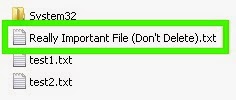
So here we can see our file that we want to keep.
Unfortunately, things happen and...
Yep, you guessed it, our really important file is GONE! Or is it?.....
With Nimble Storage you can take snapshots and even synchronize with VMware vCenter so your data is synchronized. How cool is that? Well, backups are only as good as the restore, so let's see how we restore our Really Important File.
In an earlier blog I showed you how to restore an entire volume and bring it back online in VMware vCenter, but what if new stuff has been written to this volume and I don't want to replace the whole thing? What if I just want my really important file back?
This looks like a job for this guy!!
Or Nimble Storage snapshots!
Since I couldn't get a hold of the flying bunny, here's how you do it with Nimble and VMware.
Remember, this is with VMware VMDK mounted storage, not direct connect. There are different methods to use with direct connect which I won't go over right now.
Okay, head over to your Nimble Storage GUI, select the volume your really important file was on and click on the Snapshot tab. Select the snapshot that has the data on it and click on the Clone button. Give the volume a name and you're done! Well, done on the Nimble side. :-) Take note of the time stamp, that's going to be really important in a little bit.
Back on the Volumes page we can see our clone CIFS-Restore and we can see the parent is share2012-cifs4.
Excellent, we're ready to go to vCenter!
We're going to add this volume as a datastore. There's the volume and we'll add it and give it a new signature so we can have both the original and the clone mounted at the same time.
Okay, almost there! Now let's add the datastore to a host. What host do you ask? Excellent question! It's a good idea not to mount the volume on the same machine it came from? Why? Well we gave the disk a new signature at the VMware level, but the OS might still get confused since it has it's own disk signature at it's level.
Now that we have a host to mount the disk to, add it through vCenter as an existing virtual disk.
Select the clone from the list of datastores and presto!
Oh crap, which one do you use? Remember I said to pay attention to the time? Choose the file with the same time stamp.
Outstanding! We now have our volume mounted up to a Windows host. Head over to the Windows host and look at the disks in computer management. Mine was mounted up and ready to go!
Go to Windows Explorer and your really important file should be there!
Until Next Time!
-Brain
Have you ever had a file share and someone deleted or corrupted one of your files? Or maybe you accidentally did it?
Normally this would be cause for great confusion, anger, sadness, more anger, colorful language, you get my point. Well if you had your data on a Nimble Storage array with VMDK's and were performing snapshots, you'd be in luck my friend! Today I'm going to show you how to restore single files from Nimble snapshots if the disk was attached through VMware using VMDK's.
So here we can see our file that we want to keep.
Unfortunately, things happen and...
Yep, you guessed it, our really important file is GONE! Or is it?.....
With Nimble Storage you can take snapshots and even synchronize with VMware vCenter so your data is synchronized. How cool is that? Well, backups are only as good as the restore, so let's see how we restore our Really Important File.
In an earlier blog I showed you how to restore an entire volume and bring it back online in VMware vCenter, but what if new stuff has been written to this volume and I don't want to replace the whole thing? What if I just want my really important file back?
This looks like a job for this guy!!
Or Nimble Storage snapshots!
Since I couldn't get a hold of the flying bunny, here's how you do it with Nimble and VMware.
Remember, this is with VMware VMDK mounted storage, not direct connect. There are different methods to use with direct connect which I won't go over right now.
Okay, head over to your Nimble Storage GUI, select the volume your really important file was on and click on the Snapshot tab. Select the snapshot that has the data on it and click on the Clone button. Give the volume a name and you're done! Well, done on the Nimble side. :-) Take note of the time stamp, that's going to be really important in a little bit.
Back on the Volumes page we can see our clone CIFS-Restore and we can see the parent is share2012-cifs4.
Excellent, we're ready to go to vCenter!
We're going to add this volume as a datastore. There's the volume and we'll add it and give it a new signature so we can have both the original and the clone mounted at the same time.
Okay, almost there! Now let's add the datastore to a host. What host do you ask? Excellent question! It's a good idea not to mount the volume on the same machine it came from? Why? Well we gave the disk a new signature at the VMware level, but the OS might still get confused since it has it's own disk signature at it's level.
Now that we have a host to mount the disk to, add it through vCenter as an existing virtual disk.
Select the clone from the list of datastores and presto!
Oh crap, which one do you use? Remember I said to pay attention to the time? Choose the file with the same time stamp.
Outstanding! We now have our volume mounted up to a Windows host. Head over to the Windows host and look at the disks in computer management. Mine was mounted up and ready to go!
Go to Windows Explorer and your really important file should be there!
Until Next Time!
-Brain
Friday, December 12, 2014
Performance Folks, Look What I Found! - Vdbench
Hi Friends,
I wanted to share with you a cool new performance testing tool I found. As you may know I'm a big fan of IOmeter, it's easy to install, simple to use and gives good results. But there were always a few things I wish it did. For instance, what if I wanted to test compression ratio and deduplication capabilities on an array? Also, IOmeter is great if you want to do a fire hose data blasting, but what if I want to set the IO rate? How about writing and reading to raw devices vs. something that already has a file system on it?
I give you Vdbench. Click on the Vdbench link to get it from the Oracle website. It's a text based tool that is very easy to set up and has a TON of options to it. It has so many options that I have just barely scratched the surface. I'm doing some Windows filesystem testing right now, so I thought I would share some of the configurations I'm using to test the performance on my Nimble array.
So first off, after you download the tool, you need to install it. How do you do that? Unzip it. That's it. That's it?! Yep, that's it. What's great is you can run it on Windows, Unix, Linux, Mac, etc. So you don't have to have different tools for different operating systems, pretty cool right?
Yeah, I was pretty surprised too!
Like I said earlier, you can write to a filesystem or to the raw device which is pretty cool. In the following example I created three drives, put NTFS on them and I'm varying the IO rate.
compratio=2.0,dedupratio=5,dedupunit=4k
sd=sd1,lun=n:\test1.txt,threads=32,size=50g
sd=sd2,lun=o:\test2.txt,threads=32,size=50g
sd=sd3,lun=p:\test3.txt,threads=32,size=50g
wd=wd1,sd=(sd1,sd2,sd3),xfersize=4k,rdpct=25,seekpct=100,openflags=directio
rd=run1,wd=wd1,iorate=(250,500,750,1000,max),elapsed=600,interval=5
Okay, this is where I like IOmeter better since it has a GUI. I know, boo, hiss, GUI's suck, but I've really grown to like GUI's. :-)
Yeah yeah, laugh it up! :-)
With Vdbench everything is CLI, so get your propeller hats on! You create a configuration file and when you run Vdbench you reference that file, like the one I have above. Let me break it down for you.
1. compratio=2.0,dedupratio=5,dedupunit=4k
By default Vdbench writes non-compressible, non dedupable data. Normally that's fine, but what if you want to test the compression and deduplication capabilities of your array? Well that's where this line comes in. Here I've got a compression ratio of 2:1, a dedupe ratio of 5:1 and the size of the data block that dedup tries to match with existing data, here I'm using 4k.
2. sd=sd1,lun=n:\test1.txt,threads=32,size=50g
sd=sd2,lun=o:\test2.txt,threads=32,size=50g
sd=sd3,lun=p:\test3.txt,threads=32,size=50g
SD is your Storage Definition. This can be either physical, logical, or a file system. Here I'm pointing to a drive that already has a file system on it and telling Vdbench to create a 50gig file on each drive with a maximum concurrent I/O of 32 to each SD.
3. wd=wd1,sd=(sd1,sd2,sd3),xfersize=4k,rdpct=25,seekpct=100,openflags=directio
WD is your workload definition and you just need to specify a variable since you can run multiple things with Vdbench. Here I only have one workload. I'm calling my storage devices with SD, my blocksize is 4k, I'm selecting a 25% read and 75% write workload, 100% random seek and using direct IO and no buffering.
4. rd=run1,wd=wd1,iorate=(250,500,750,1000,max),elapsed=600,interval=5
RD is your run definition and you specify a name, similar to the above two variables. Here I'm calling my workload definition 1. Now this is really neat. Here I'm specifying my IOPs and I'm selecting a varied run. First I start out at 250, then step up to 500, next 750, 1000 and finally turn the fire hose on at full blast to see what the array can do at full throttle. The neat thing about this is if you want to see how your array performs with specific IOPs you can. Okay, **I** think its cool... Next I'm running for a total of 600 seconds and reporting back to the screen every 5 seconds.
As I said earlier, I'm just scratching the surface of the tool and there's a TON more you can do with it.
As I learn more about the tool and run more performance tests I'll share it with you!
Until Next Time!
-Brain
I wanted to share with you a cool new performance testing tool I found. As you may know I'm a big fan of IOmeter, it's easy to install, simple to use and gives good results. But there were always a few things I wish it did. For instance, what if I wanted to test compression ratio and deduplication capabilities on an array? Also, IOmeter is great if you want to do a fire hose data blasting, but what if I want to set the IO rate? How about writing and reading to raw devices vs. something that already has a file system on it?
I give you Vdbench. Click on the Vdbench link to get it from the Oracle website. It's a text based tool that is very easy to set up and has a TON of options to it. It has so many options that I have just barely scratched the surface. I'm doing some Windows filesystem testing right now, so I thought I would share some of the configurations I'm using to test the performance on my Nimble array.
So first off, after you download the tool, you need to install it. How do you do that? Unzip it. That's it. That's it?! Yep, that's it. What's great is you can run it on Windows, Unix, Linux, Mac, etc. So you don't have to have different tools for different operating systems, pretty cool right?
Yeah, I was pretty surprised too!
Like I said earlier, you can write to a filesystem or to the raw device which is pretty cool. In the following example I created three drives, put NTFS on them and I'm varying the IO rate.
compratio=2.0,dedupratio=5,dedupunit=4k
sd=sd1,lun=n:\test1.txt,threads=32,size=50g
sd=sd2,lun=o:\test2.txt,threads=32,size=50g
sd=sd3,lun=p:\test3.txt,threads=32,size=50g
wd=wd1,sd=(sd1,sd2,sd3),xfersize=4k,rdpct=25,seekpct=100,openflags=directio
rd=run1,wd=wd1,iorate=(250,500,750,1000,max),elapsed=600,interval=5
Okay, this is where I like IOmeter better since it has a GUI. I know, boo, hiss, GUI's suck, but I've really grown to like GUI's. :-)
Yeah yeah, laugh it up! :-)
With Vdbench everything is CLI, so get your propeller hats on! You create a configuration file and when you run Vdbench you reference that file, like the one I have above. Let me break it down for you.
1. compratio=2.0,dedupratio=5,dedupunit=4k
By default Vdbench writes non-compressible, non dedupable data. Normally that's fine, but what if you want to test the compression and deduplication capabilities of your array? Well that's where this line comes in. Here I've got a compression ratio of 2:1, a dedupe ratio of 5:1 and the size of the data block that dedup tries to match with existing data, here I'm using 4k.
2. sd=sd1,lun=n:\test1.txt,threads=32,size=50g
sd=sd2,lun=o:\test2.txt,threads=32,size=50g
sd=sd3,lun=p:\test3.txt,threads=32,size=50g
SD is your Storage Definition. This can be either physical, logical, or a file system. Here I'm pointing to a drive that already has a file system on it and telling Vdbench to create a 50gig file on each drive with a maximum concurrent I/O of 32 to each SD.
3. wd=wd1,sd=(sd1,sd2,sd3),xfersize=4k,rdpct=25,seekpct=100,openflags=directio
WD is your workload definition and you just need to specify a variable since you can run multiple things with Vdbench. Here I only have one workload. I'm calling my storage devices with SD, my blocksize is 4k, I'm selecting a 25% read and 75% write workload, 100% random seek and using direct IO and no buffering.
4. rd=run1,wd=wd1,iorate=(250,500,750,1000,max),elapsed=600,interval=5
RD is your run definition and you specify a name, similar to the above two variables. Here I'm calling my workload definition 1. Now this is really neat. Here I'm specifying my IOPs and I'm selecting a varied run. First I start out at 250, then step up to 500, next 750, 1000 and finally turn the fire hose on at full blast to see what the array can do at full throttle. The neat thing about this is if you want to see how your array performs with specific IOPs you can. Okay, **I** think its cool... Next I'm running for a total of 600 seconds and reporting back to the screen every 5 seconds.
As I said earlier, I'm just scratching the surface of the tool and there's a TON more you can do with it.
As I learn more about the tool and run more performance tests I'll share it with you!
Until Next Time!
-Brain
Wednesday, December 3, 2014
Cleaning Up Replicas, Virtual Desktops, Composer & ADAM Databases, AHHHH!!
Hi Friends,
I'm doing a bunch of testing with VMware Horizon with View using Linked Clones and I'm creating, deleting, creating, deleting, creating, deleting, well, you get the point. Inevitably with so much creating and deleting I get stuck desktops.... What is a "stuck" desktop? Well, it's a desktop that you tell Horizon do delete and it thinks and thinks and thinks, but no deleting happens. Lousy rotten clone, I'll show you who's boss!!!
So I go into vCenter right click those suckers and delete them! Ha Ha! I'm the boss of you clones!!
But my smug demeanor is rapidly deflated when I go back into Horizon and see the desktops are still stuck at "deleting" as well as "missing". ARGH!!!
AND.... I have a Linked Clone Replica(s) stuck in vCenter. I think those are protected from removal or deletion by vCenter. So, you not only have desktops stuck in purgatory, but you also have a replica(s) that can't be removed either.
Okay, so what the heck to do you do? Well, there's lots of articles on the Internet, and there's different approaches. The first thing is you have to do is determine is this production, or is this an environment that can be trashed a little or a lot? Since I'm working in a lab environment, I can trash it, but I'd hate to have to rebuild EVERYTHING!! So I thought I'd show you how to clean up your environment if it's NOT production.
WARNING - I suggest taking a backup before you try any of this as it IS destructive. If you destroy your environment, I'm not responsible, so please don't blame me!!
WARNING - Remember, these procedures are NOT for production, and if this is dev/test, but you've got lots of stuff you want to keep in your Composer database, move along, this is not the solution you're looking for....
Okay, so you've got a bit of a mess on your hands. You've got a bunch of "deleting(missing)" desktops, replica(s) that won't go away and you just wish it would all go away. Maybe into a cornfield??
Like I said, there's lots of articles out there, but I wanted to show you a destructive way to clean everything up so you can get moving quickly if you don't have anything worth saving.
1. Clean up your ADAM database to get rid of the "deleting(missing)" desktops in Horizon.
This step is pretty easy. Follow this VMware KB to open your ADAM database on your Horizon with View Connection Server. This is the server that has the Horizon web administrative tool on it. The only thing to watch out for is if you're using Remote Desktop. I had trouble connecting to the ADAM database using domain administrator and Remote Desktop. The article tells you to use a user with elevated privileges, but it didn't work for me, so I consoled into the server using vCenter and that worked. Use the first part of this VMware KB to find and delete the desktops in the ADAM database once it's been opened.
2. Clean the View Composer Database.
All those "deleting(missing)" desktops are gone! You're good to go right? Not so fast Mr.! The Composer database still has all of those desktop references in it.
There's another section in that last KB about cleaning up your Composer database and I'd recommend following it if this is not a dev/test environment that you can trash.
So here's what I do. Log onto your Composer server and de-install Composer. Next log onto your SQL Server that has your Composer database and delete that database. I told you this is destructive!!
3. Get rid of the replica(s) from vCenter.
Okay, another method that I don't recommend if this is not a sandbox environment. Log into vCenter and browse the datastores that the Linked Clones and replica(s) are using. Delete all of the Linked Clone and replica folders of the machines you want to get rid of. Don't just delete everything! :-)
You'll notice you can't remove or delete the replica from inside vCenter, so we have to go to the ESXi server the replica(s) lives on.
Find out what ESXi server the replica is living on and log into the GUI of that ESXi server.
You'll notice from here you CAN remove the replica now. HURRAY!
Remove the replica from inventory, but you'll notice it's STILL in vCenter and listed as orphaned. Never fear, we'll get rid of that sucker! Go back to vCenter, put the ESXi server into maintenance mode, disconnect and remove it from inventory. Wo, wo, wo wo!!! Isn't this a bit extreme? Yes, yes it is. But remember this is a quick and dirty way to get rid of the replica(s). Add the ESXi server back into inventory, exit maintenance mode and you'll notice the replica is gone!! Is this the best way to get rid of replicas? Probably not, and I'm guessing it's not a best practice from VMware either so use at your own risk. Big thanks to mwpreston.net for demonstrating this method of removing stuck replicas.
4. Create your Composer Database.
If you remember we deleted our Composer Database earlier and it's time to create a new one. I suggest using the same name so you don't have to change ODBC connections. Give it the same permissions it had before too.
5. Re-install Composer.
Go back to your Composer machine and make sure your ODBC connection still works. When you're sure the connection is good, re-install Composer and point to the newly created database with the same name.
6. Some last cleanup.
We're good now right? Well.... Maybe.... I've had some trouble with the Composer connection in the VMware Horizon View Administrator tool after I've de-installed and re-installed. The secure certificates didn't want to work anymore and the connection from the administrator tool wouldn't connect to Composer anymore. I think this is because I de-installed and re-installed Composer, but who knows for sure. :-)
The easiest thing is to go into the View Configuration > Servers and delete your vCenter Server connection from inside the View Administrator. When you re-add it, add your Composer again and it should connect okay now. Remember to make sure the Domain connection is working too when you add your Composer connections. You'll probably have to re-enter it when you click on the Verify Server Information button.
Well that should do it. Everything should be working and you've got a crisp clean Composer database.
-Until Next Time
Brain
I'm doing a bunch of testing with VMware Horizon with View using Linked Clones and I'm creating, deleting, creating, deleting, creating, deleting, well, you get the point. Inevitably with so much creating and deleting I get stuck desktops.... What is a "stuck" desktop? Well, it's a desktop that you tell Horizon do delete and it thinks and thinks and thinks, but no deleting happens. Lousy rotten clone, I'll show you who's boss!!!
So I go into vCenter right click those suckers and delete them! Ha Ha! I'm the boss of you clones!!
But my smug demeanor is rapidly deflated when I go back into Horizon and see the desktops are still stuck at "deleting" as well as "missing". ARGH!!!
AND.... I have a Linked Clone Replica(s) stuck in vCenter. I think those are protected from removal or deletion by vCenter. So, you not only have desktops stuck in purgatory, but you also have a replica(s) that can't be removed either.
Okay, so what the heck to do you do? Well, there's lots of articles on the Internet, and there's different approaches. The first thing is you have to do is determine is this production, or is this an environment that can be trashed a little or a lot? Since I'm working in a lab environment, I can trash it, but I'd hate to have to rebuild EVERYTHING!! So I thought I'd show you how to clean up your environment if it's NOT production.
WARNING - I suggest taking a backup before you try any of this as it IS destructive. If you destroy your environment, I'm not responsible, so please don't blame me!!
WARNING - Remember, these procedures are NOT for production, and if this is dev/test, but you've got lots of stuff you want to keep in your Composer database, move along, this is not the solution you're looking for....
Okay, so you've got a bit of a mess on your hands. You've got a bunch of "deleting(missing)" desktops, replica(s) that won't go away and you just wish it would all go away. Maybe into a cornfield??
Like I said, there's lots of articles out there, but I wanted to show you a destructive way to clean everything up so you can get moving quickly if you don't have anything worth saving.
1. Clean up your ADAM database to get rid of the "deleting(missing)" desktops in Horizon.
This step is pretty easy. Follow this VMware KB to open your ADAM database on your Horizon with View Connection Server. This is the server that has the Horizon web administrative tool on it. The only thing to watch out for is if you're using Remote Desktop. I had trouble connecting to the ADAM database using domain administrator and Remote Desktop. The article tells you to use a user with elevated privileges, but it didn't work for me, so I consoled into the server using vCenter and that worked. Use the first part of this VMware KB to find and delete the desktops in the ADAM database once it's been opened.
2. Clean the View Composer Database.
All those "deleting(missing)" desktops are gone! You're good to go right? Not so fast Mr.! The Composer database still has all of those desktop references in it.
There's another section in that last KB about cleaning up your Composer database and I'd recommend following it if this is not a dev/test environment that you can trash.
So here's what I do. Log onto your Composer server and de-install Composer. Next log onto your SQL Server that has your Composer database and delete that database. I told you this is destructive!!
3. Get rid of the replica(s) from vCenter.
Okay, another method that I don't recommend if this is not a sandbox environment. Log into vCenter and browse the datastores that the Linked Clones and replica(s) are using. Delete all of the Linked Clone and replica folders of the machines you want to get rid of. Don't just delete everything! :-)
You'll notice you can't remove or delete the replica from inside vCenter, so we have to go to the ESXi server the replica(s) lives on.
Find out what ESXi server the replica is living on and log into the GUI of that ESXi server.
You'll notice from here you CAN remove the replica now. HURRAY!
Remove the replica from inventory, but you'll notice it's STILL in vCenter and listed as orphaned. Never fear, we'll get rid of that sucker! Go back to vCenter, put the ESXi server into maintenance mode, disconnect and remove it from inventory. Wo, wo, wo wo!!! Isn't this a bit extreme? Yes, yes it is. But remember this is a quick and dirty way to get rid of the replica(s). Add the ESXi server back into inventory, exit maintenance mode and you'll notice the replica is gone!! Is this the best way to get rid of replicas? Probably not, and I'm guessing it's not a best practice from VMware either so use at your own risk. Big thanks to mwpreston.net for demonstrating this method of removing stuck replicas.
4. Create your Composer Database.
If you remember we deleted our Composer Database earlier and it's time to create a new one. I suggest using the same name so you don't have to change ODBC connections. Give it the same permissions it had before too.
5. Re-install Composer.
Go back to your Composer machine and make sure your ODBC connection still works. When you're sure the connection is good, re-install Composer and point to the newly created database with the same name.
6. Some last cleanup.
We're good now right? Well.... Maybe.... I've had some trouble with the Composer connection in the VMware Horizon View Administrator tool after I've de-installed and re-installed. The secure certificates didn't want to work anymore and the connection from the administrator tool wouldn't connect to Composer anymore. I think this is because I de-installed and re-installed Composer, but who knows for sure. :-)
The easiest thing is to go into the View Configuration > Servers and delete your vCenter Server connection from inside the View Administrator. When you re-add it, add your Composer again and it should connect okay now. Remember to make sure the Domain connection is working too when you add your Composer connections. You'll probably have to re-enter it when you click on the Verify Server Information button.
Well that should do it. Everything should be working and you've got a crisp clean Composer database.
-Until Next Time
Brain
Tuesday, November 25, 2014
Nimble Storage Best Practices with VMware Horizon (with View) Best Practice Guide
Hi Friends,
Are you looking to implement VMware Horizon (with View)? Do you have questions on where to put your Linked Clone Replica? Where golden images belong? How to protect your VDI environment? Or how CASL by Nimble Storage can help? Well friends, Mike and Neil have got you covered in our recently updated VMware Horizon (with View) best practice guide!
Until Next Time!
-Brain
Are you looking to implement VMware Horizon (with View)? Do you have questions on where to put your Linked Clone Replica? Where golden images belong? How to protect your VDI environment? Or how CASL by Nimble Storage can help? Well friends, Mike and Neil have got you covered in our recently updated VMware Horizon (with View) best practice guide!
Until Next Time!
-Brain
Monday, November 17, 2014
Brain & Wendel #23 - A Day in the Life of a Nimble Support Engineer
Hi Friends,
This week on Brain & Wendel we talk with Jan Schwoebel, a Nimble Storage Escalation Support Engineer and virtualizaton expert. Jan shares his experiences in support including, common storage and virtualization issues and fixes! This is a great episode for virtualization and storage administrators! Thanks for being our guest Jan!
Don't forget to check out Jan's blog, Mind The Virtualization where he shares a ton of his knowledge!
For iTunes: iTunes
For direct MP3: mp3
This week on Brain & Wendel we talk with Jan Schwoebel, a Nimble Storage Escalation Support Engineer and virtualizaton expert. Jan shares his experiences in support including, common storage and virtualization issues and fixes! This is a great episode for virtualization and storage administrators! Thanks for being our guest Jan!
Don't forget to check out Jan's blog, Mind The Virtualization where he shares a ton of his knowledge!
For iTunes: iTunes
For direct MP3: mp3
Subscribe to:
Posts (Atom)